Please follow the given steps to configure Slider Settings.

How To Configure Default Slider Section
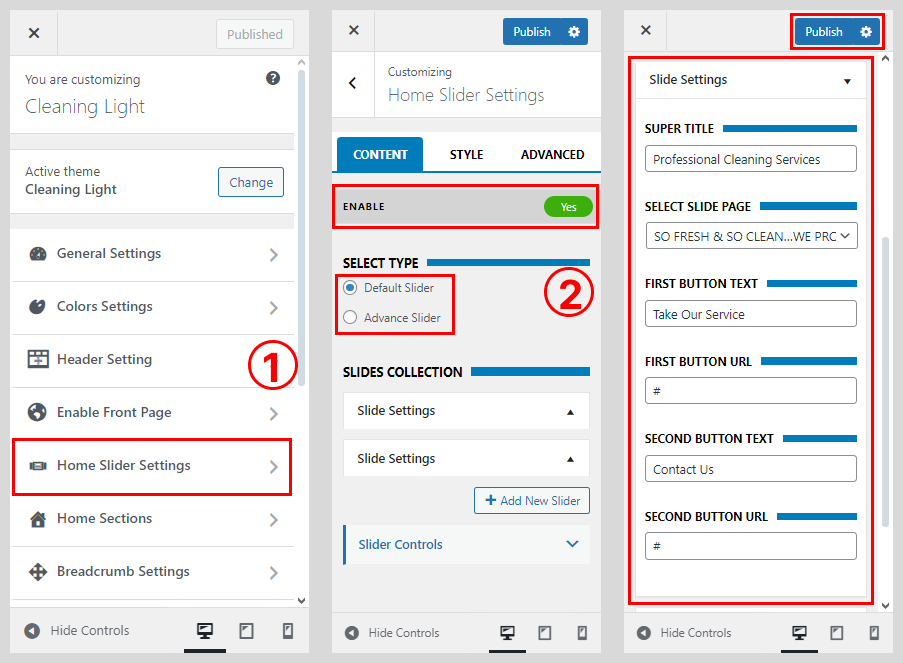
- Go to Appearance > Customize > Home Slider Settings.
- Check Enable Home Page Slider to show the featured slider on the homepage.
- Select the Default Slider
- Click the Slide Settings.
- Add the Slider Super Title
- Select the Slider Page
- And add First Button text > Its Url Again Second Button Text > Its Url.
- For another Slider Page to click Add New Slider.
- Click on Publish button.
How To Configure Default Slider Page
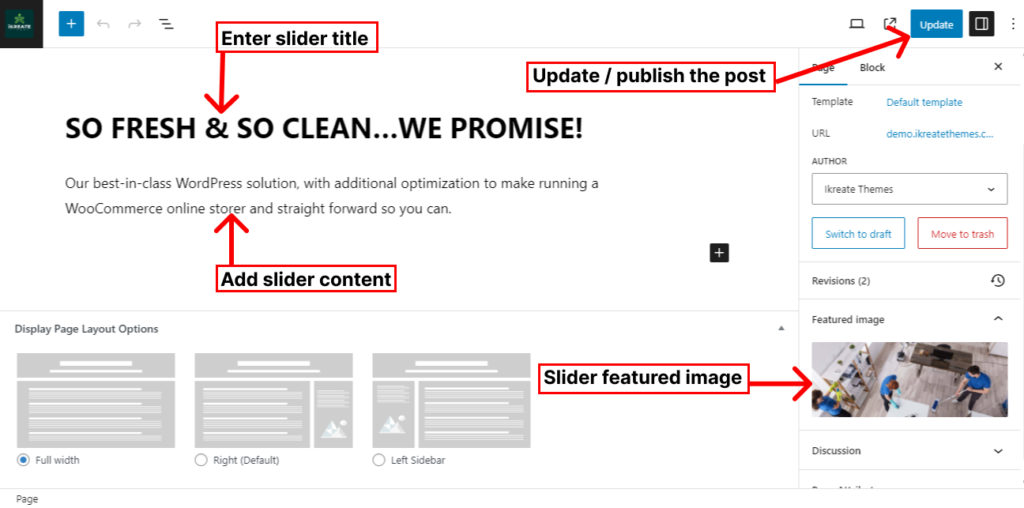
- Go to Dashboard > New Pages.
- Add there Slider Title
- Add the Slider Content
- And last one is Slider Featured Image
- Click on Update / Publish button.
How To Configure Advance Slider Section
- Go to Appearance > Customize > Home Slider Settings.
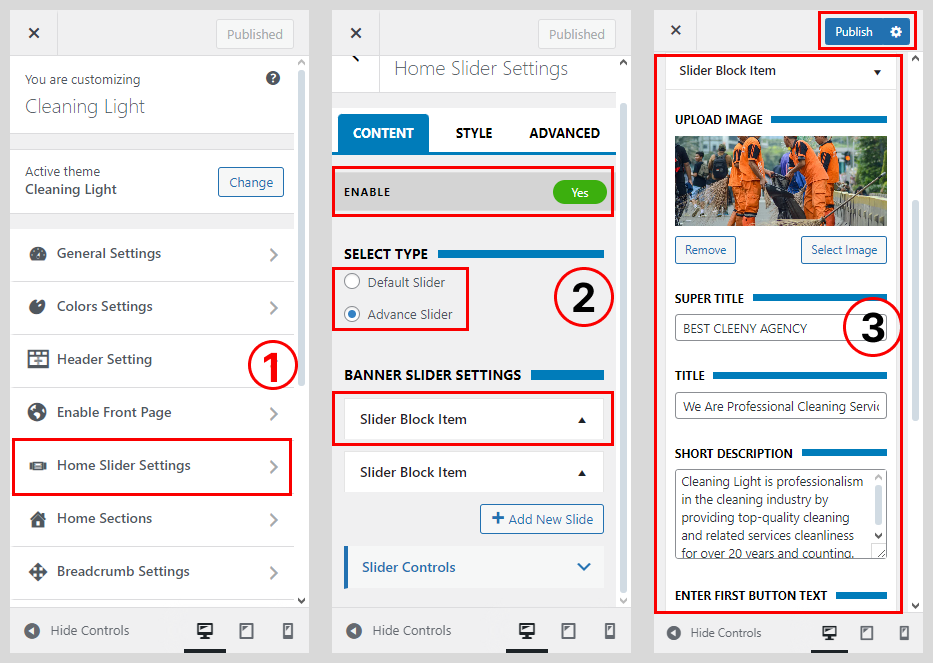
- Check Enable Home Page Slider to show the featured slider on the homepage.
- Select the Advance Slider
- Click the Slider Block Item.
- Add the Slider Super Title
- Select the Slider Title
- Write Slider Short Description
- And add First Button text > Its Url Again Second Button Text > Its Url.
- For another Slider Page to click Add New Slider.
- Click on Publish button.
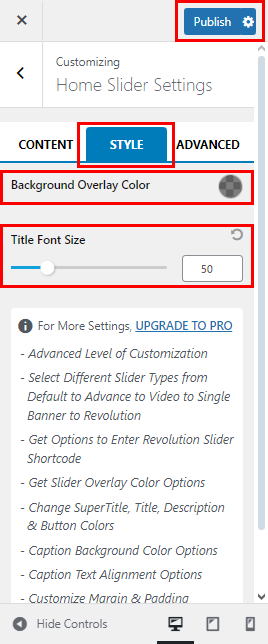
Configure the Style of Slider Section
- Click to Style
- Select the Background Overlay Color
- Size Your Font Title
- Click on Publish button.
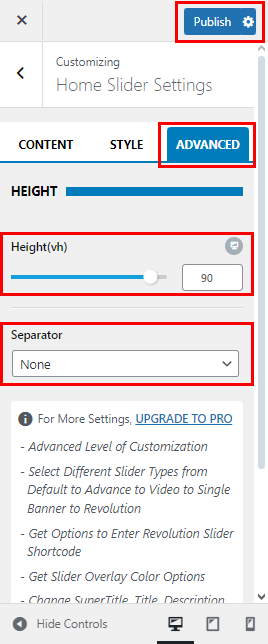
Configure the Advance of Slider Section
- Click to Advance
- Select the Slider Image Height
- Use Separator
- Click on Publish button.