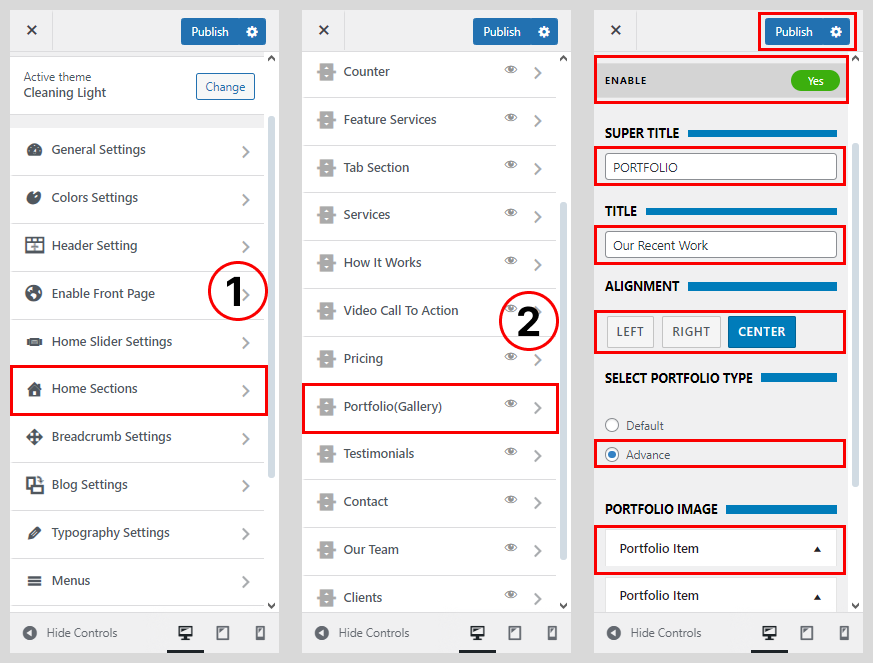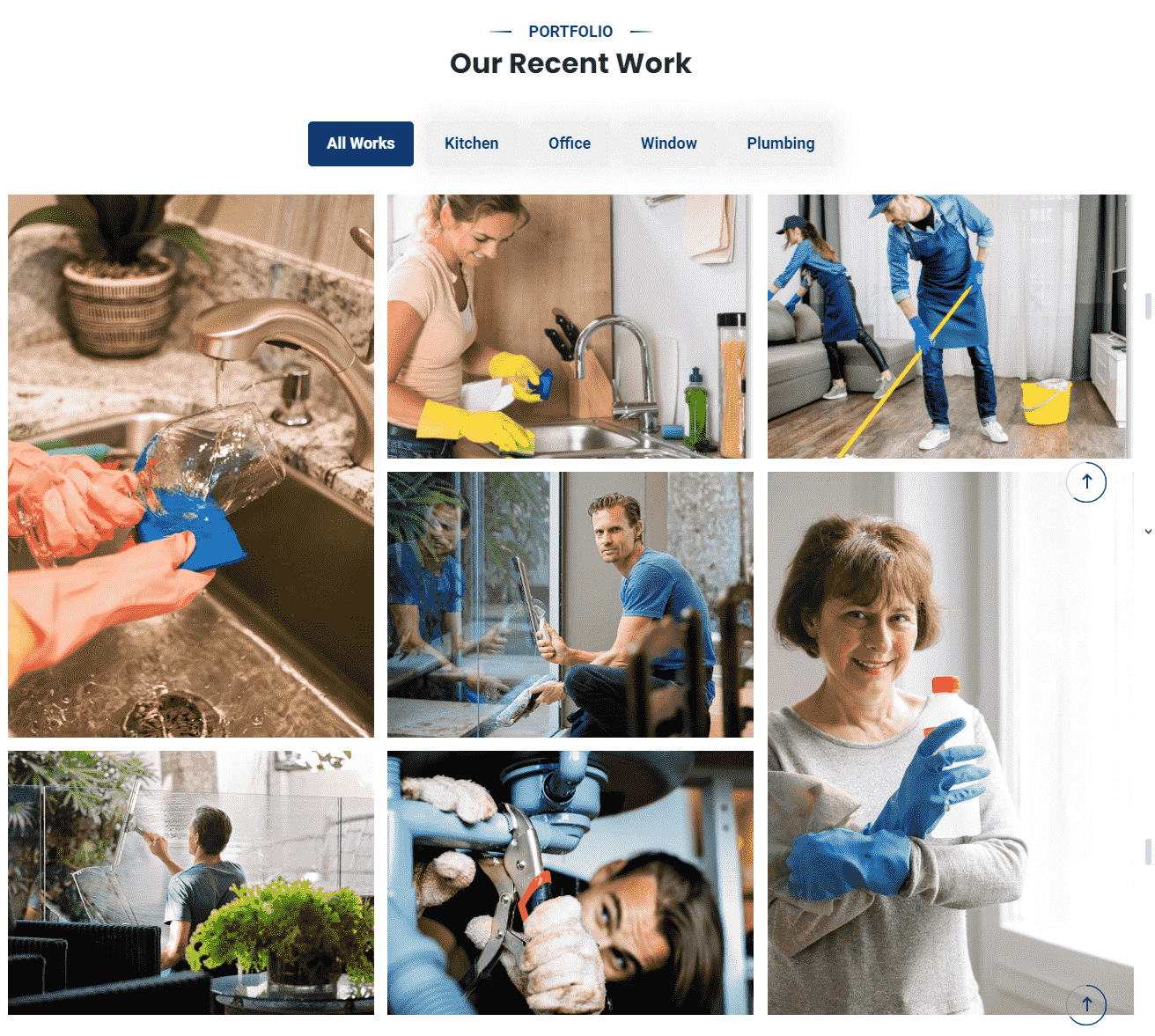
To Create a Portfolio Section You’ll initially need to create the portfolio categories and portfolio posts then later configure to display the portfolio via Customizer.
How To Configure Default Portfolio
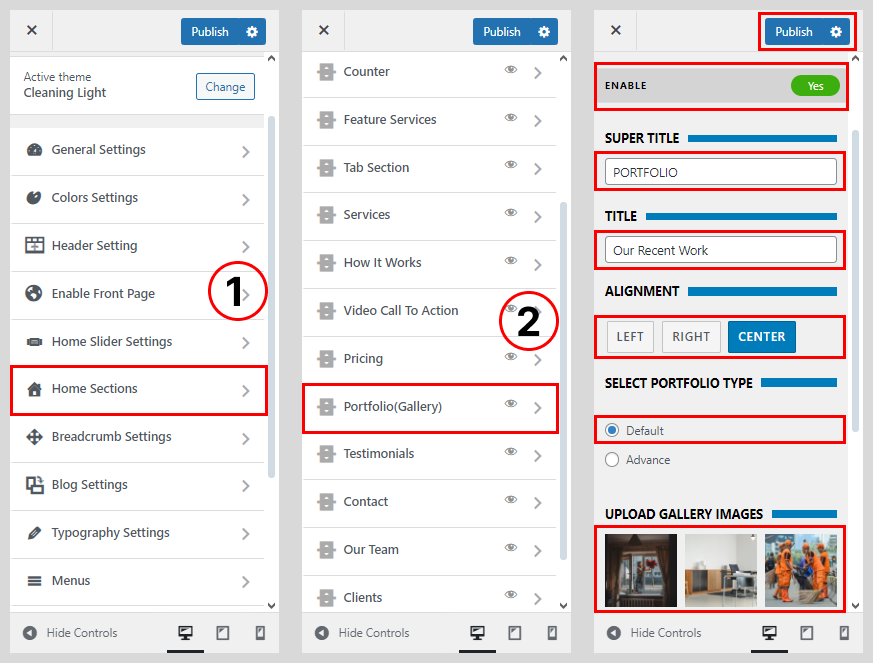
- Go to Appearance > Customize > Home Section.
- Select the Portfolio (Gallery)
- Set ‘Disable Section‘ to ‘No‘, if you wish to disable the portfolio section on your home page else, set the option to ‘Yes‘.
- Add the Slider Super Title and Title.
- Select the Default Portfolio Type
- Upload the Gallery Images.
- Click on Publish button.
How To Configure Advance Portfolio
- Go to Dashboard > Appearance > Customize.
- Go to Home Sections > Portfolio Section.
- Set ‘Disable Section‘ to ‘No‘, if you wish to disable the portfolio section on your home page else, set the option to ‘Yes‘.
- Set the title for the portfolio section under ‘Title’ textfield.
- Set the subtitle for the portfolio section under the ‘Sub Title‘ textarea field.
- Select the Default Portfolio Type
- Click on Portfolio Page
- Once done, click on the ‘Save & Publish‘ button