The theme allows you to display 1-4 counters under the Counter Section. To configure the counter section follow these steps:
How To Configure Client Logo Section
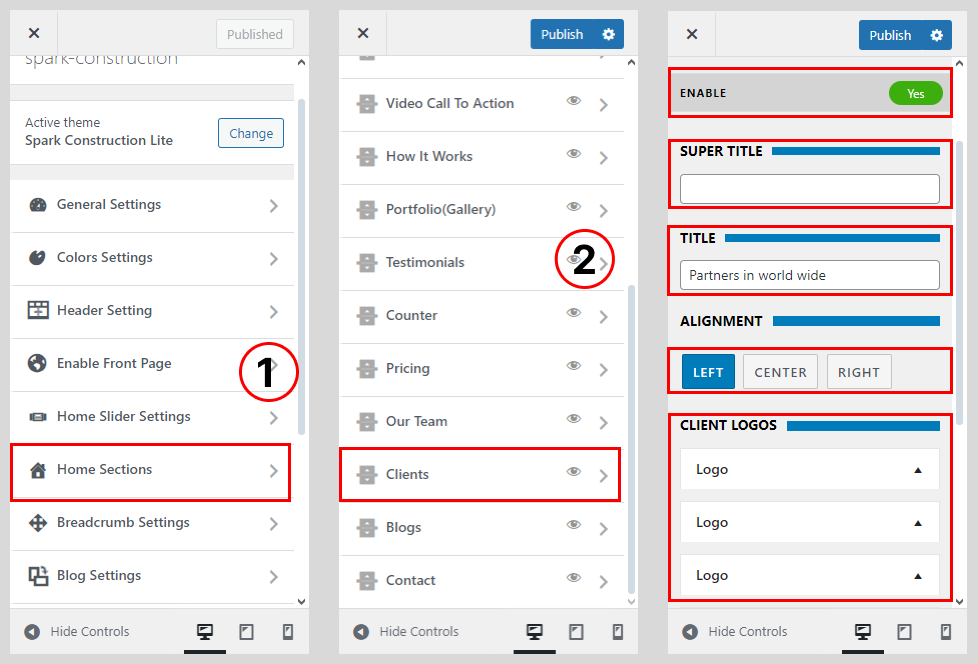
- Go to Dashboard > Appearance > Customize.
- Go to Home Sections > Client Logo Section.
- Set ‘Disable Section’ to ‘No’ if you wish to disable Client Logo Section in your home page else set the option to ‘Yes’.
- Set the Client Logo Section sub-title under the ‘Sub Title’ textarea field.
- Set the Client Logo Section title under the ‘Title‘ text field.
- Select on Text Alignment
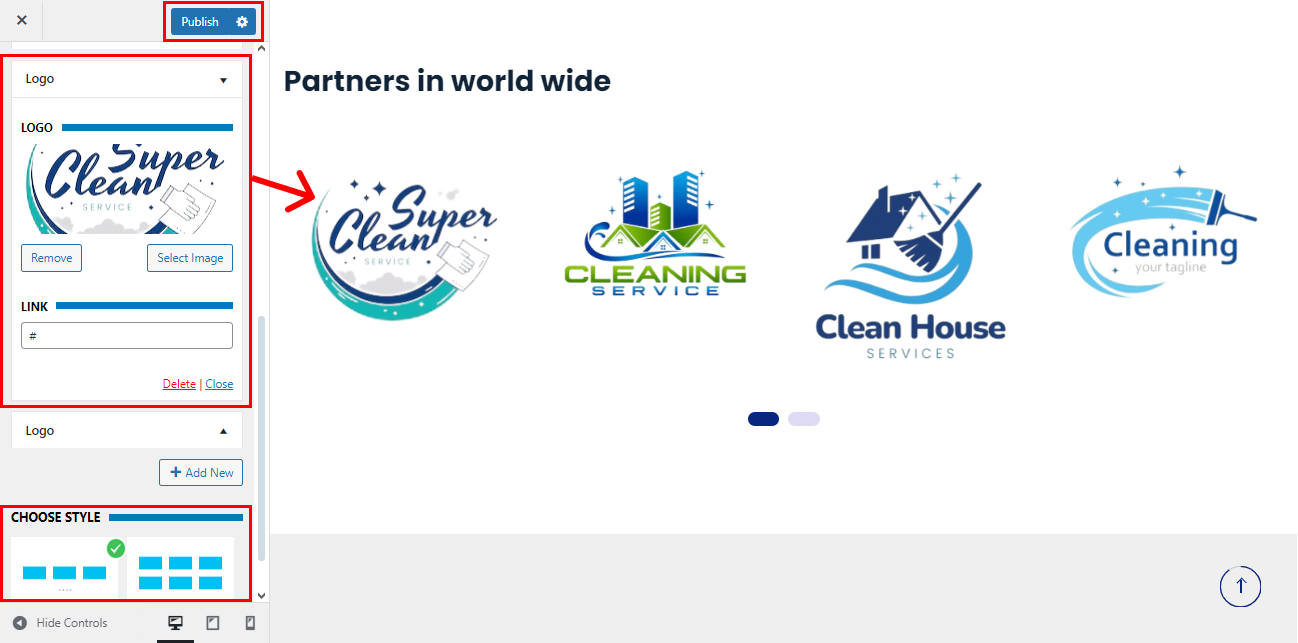
- Click on Client Logo
- Click on the ‘Add/Edit Gallery’ button and select the multiple client logo images from the media library. These Logos will be displayed as a carousel.
- Once done, click on the ‘Save & Publish‘ button.