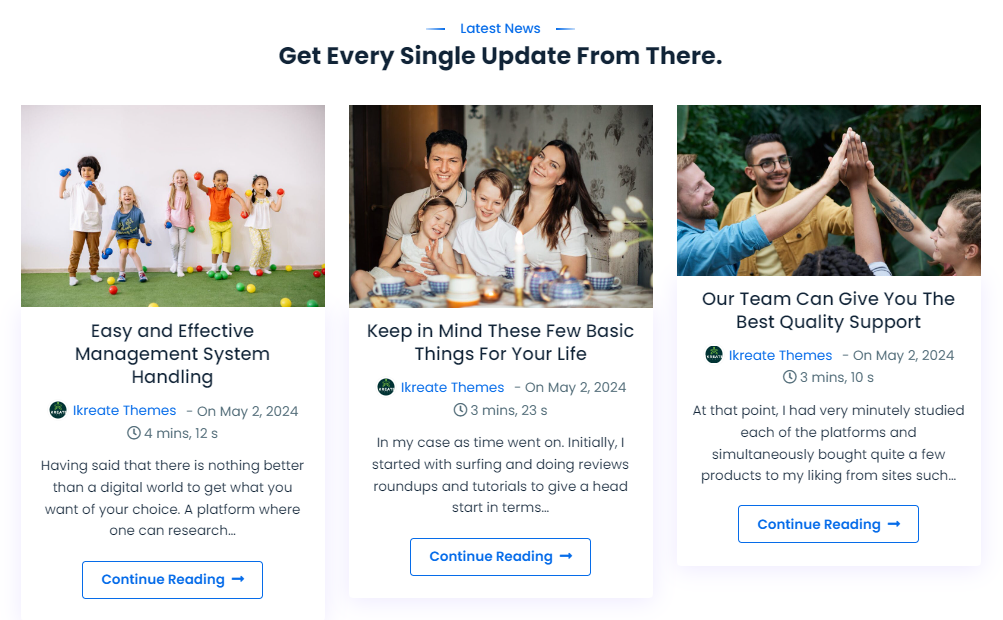
To Create a Blog Section You’ll initially need create the blog categories and blog posts then later configure to display the blog via Customizer.
How To Configure Blog Section
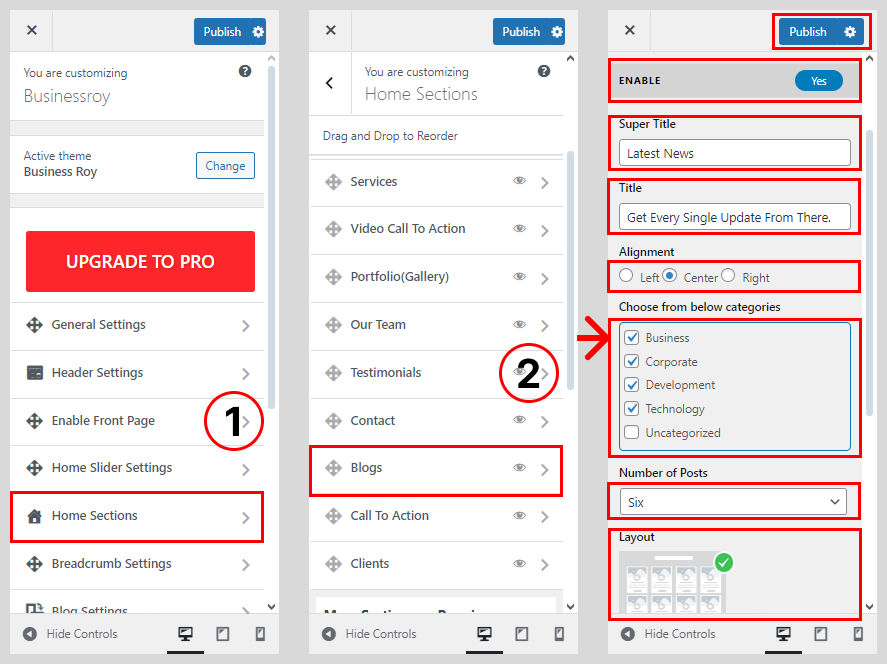
- Go to Dashboard > Appearance > Customize.
- Go to Home Sections > Blog Section.
- Set ‘Disable Section‘ to ‘No‘ if you wish to disable the Blog Section on your home page else set the option to ‘Yes‘.
- Set the title for the Blog Section under ‘Title‘ textfield.
- Set the subtitle for the Blog Section under the ‘Sub Title‘ textarea field.
- Set the no. of posts to display in the blog section from ‘Number of posts to show’ drop-down list.
- You may prevent the posts from certain categories to display in the Blog Section by check-marking on the blog categories under ‘Exclude Category from Blog Posts’ option.
- Once done, click on the ‘Save & Publish‘ button.
How To Configure Blog Category
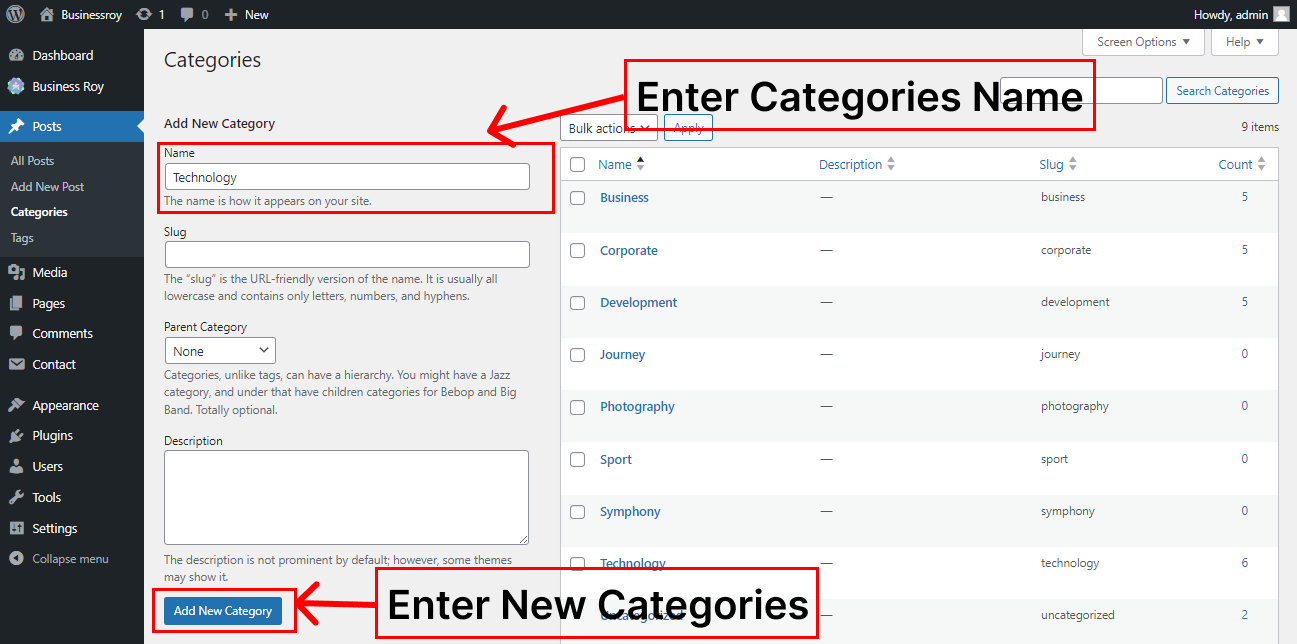
- Go to Dashboard > Posts > Categories.
- Enter the name for the Blog Category.
- Click on the ‘Add New Category‘ button.
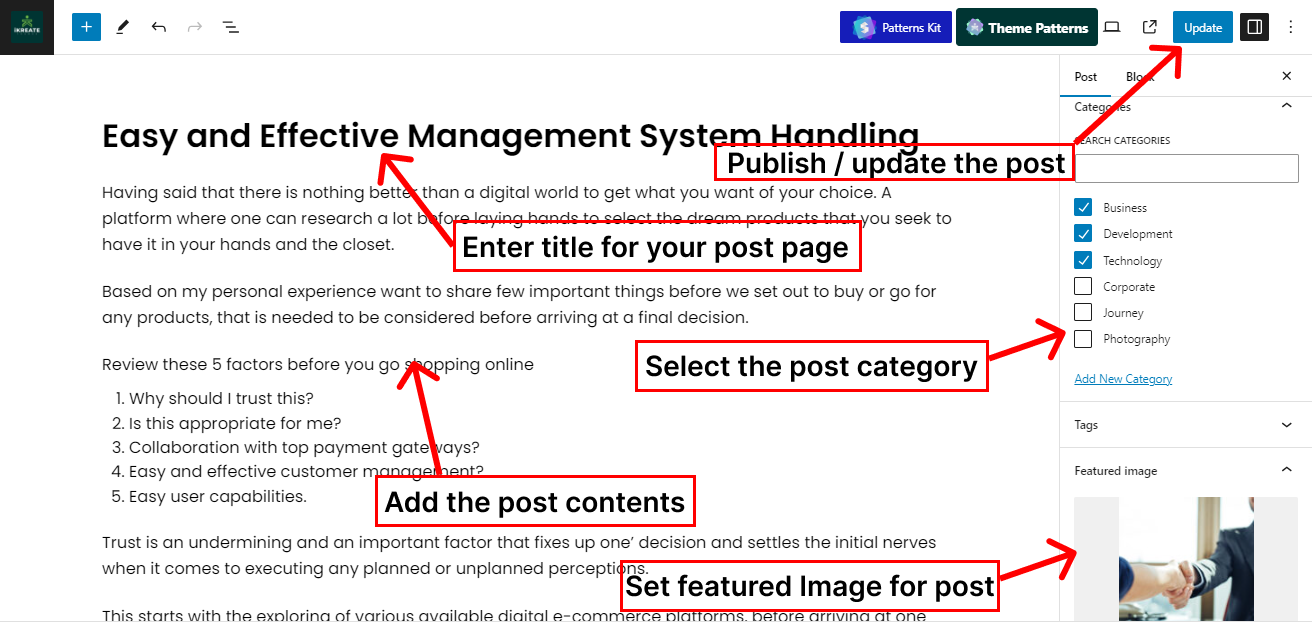
How To Configure Blog Posts
- Go to Dashboard > Posts > Add New.
- Enter the ‘Title’ for the blog post.
- Enter the Contents for the blog post.
- Select the Blog Categories under the categories option.
- Set the Featured Image for the blog post.
- Click on the ‘Publish/Update’ button.