How To Configure About Us Section
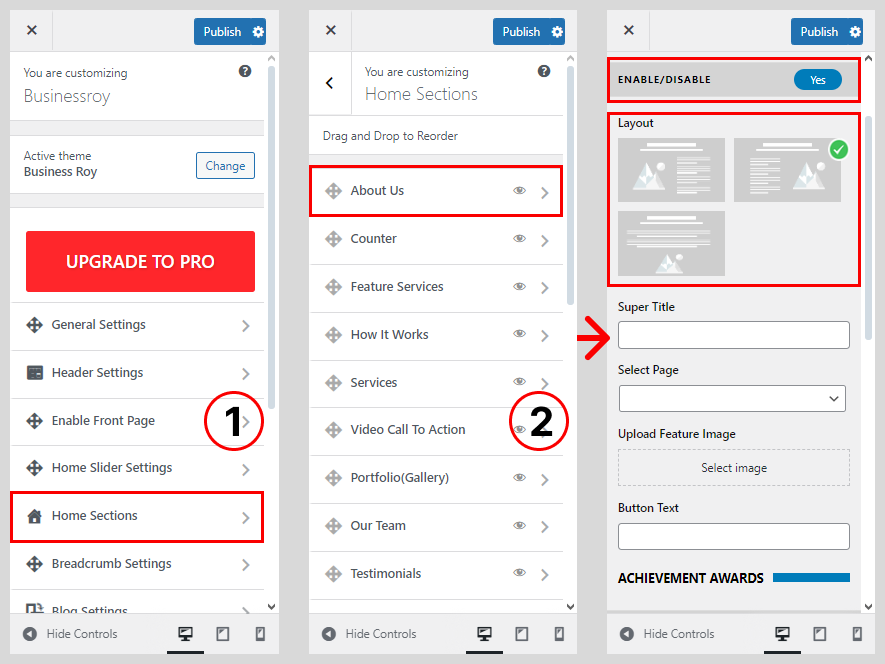
- Go to Dashboard > Appearance > Customize.
- Go to Home Section > About Us Section.
- Set ‘Disable Section’ to ‘No’ if you wish to disable about us section in your home page else set the option to ‘Yes’.
- Set the Progress Bar (1-3) as per your requirement.
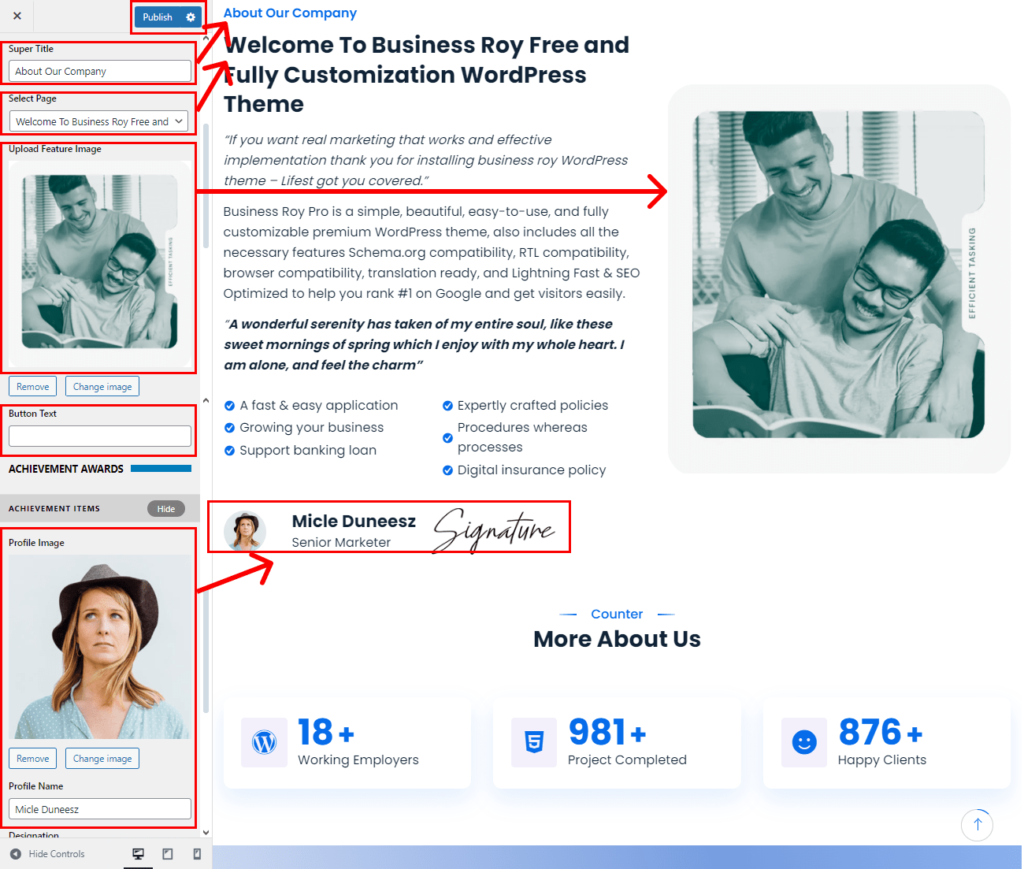
- Write Super Title
- Select the About Us page you’ve created for the About Us section from the ‘Select a page’ drop-down list.
- Set the image on the right side of the About Us section by clicking on the ‘Upload Image’ button under the ‘Right Image’ title Or you may also display a particular widget instead of the image by selecting the widget of your choice from ‘Replace Image by Widget’ drop-down list.
- Write Button Text
- Show Achievement Items
- Once Done, Click on ‘Save & Publish’ button.
How To Configure About Us Page
Please follow the below Create About Us page:
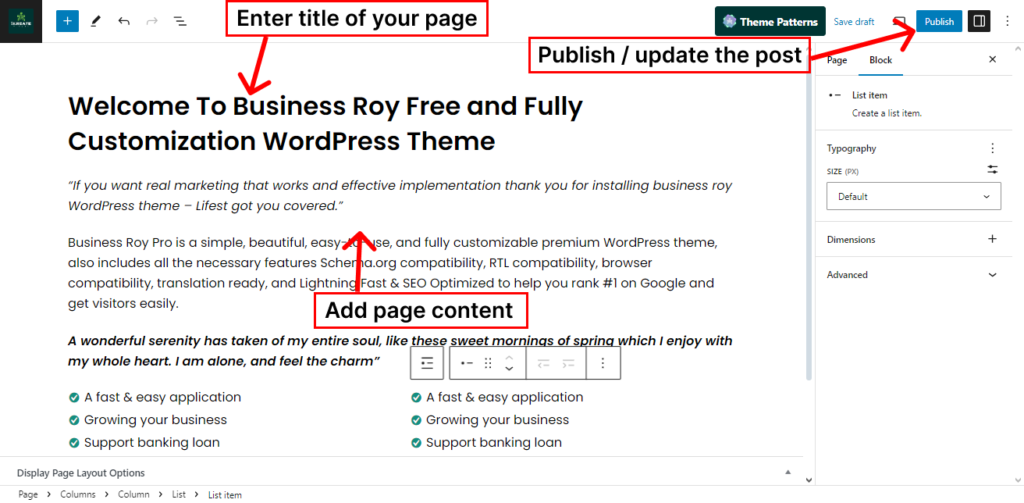
- Go to Dashboard > Pages > Add New.
- Enter the Title for the About Us page.
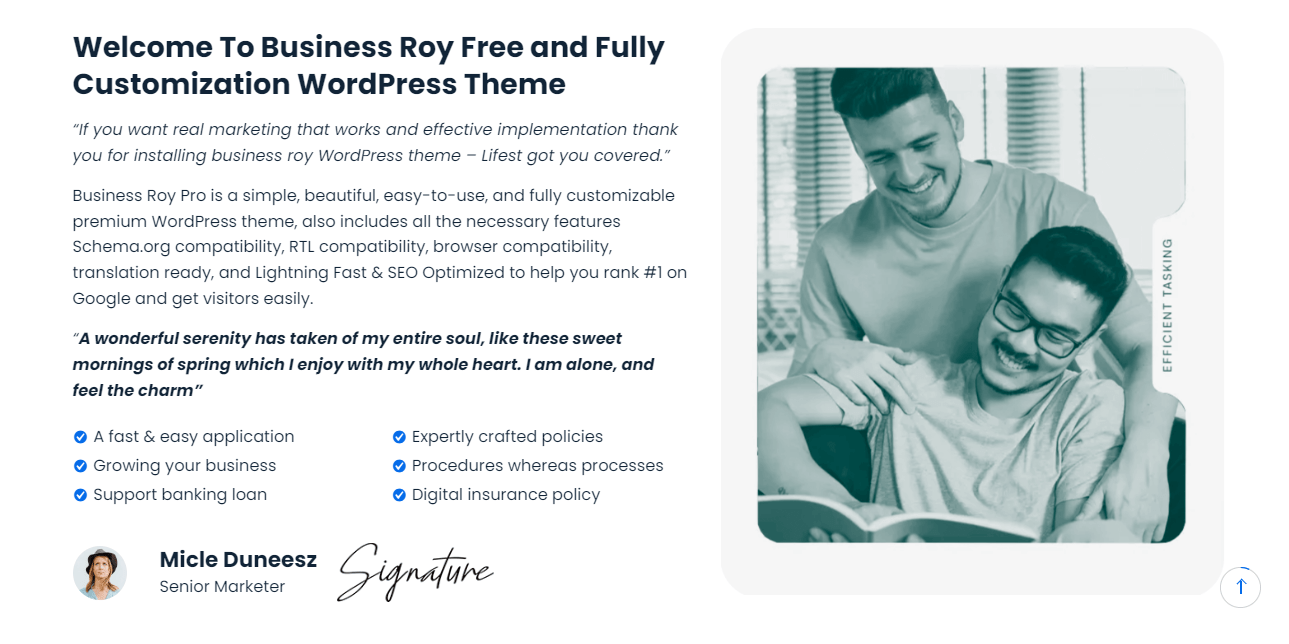
- Enter the Contents for the About Us page in the Content Area.
- Click on the Publish/Update button.