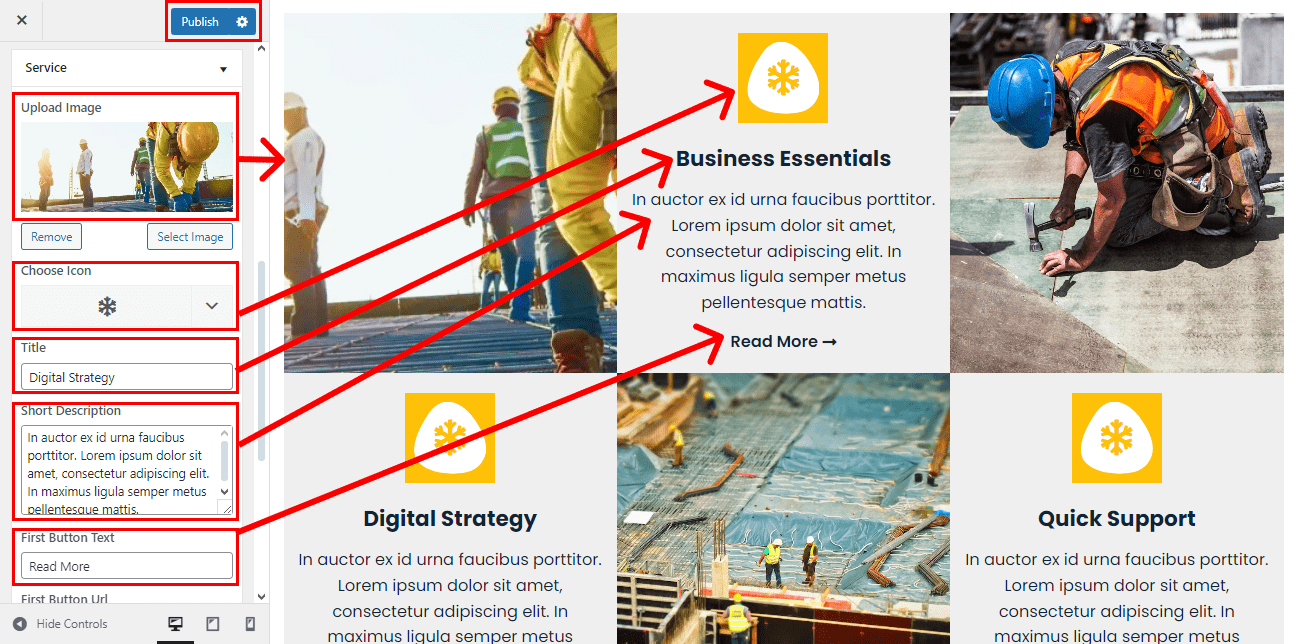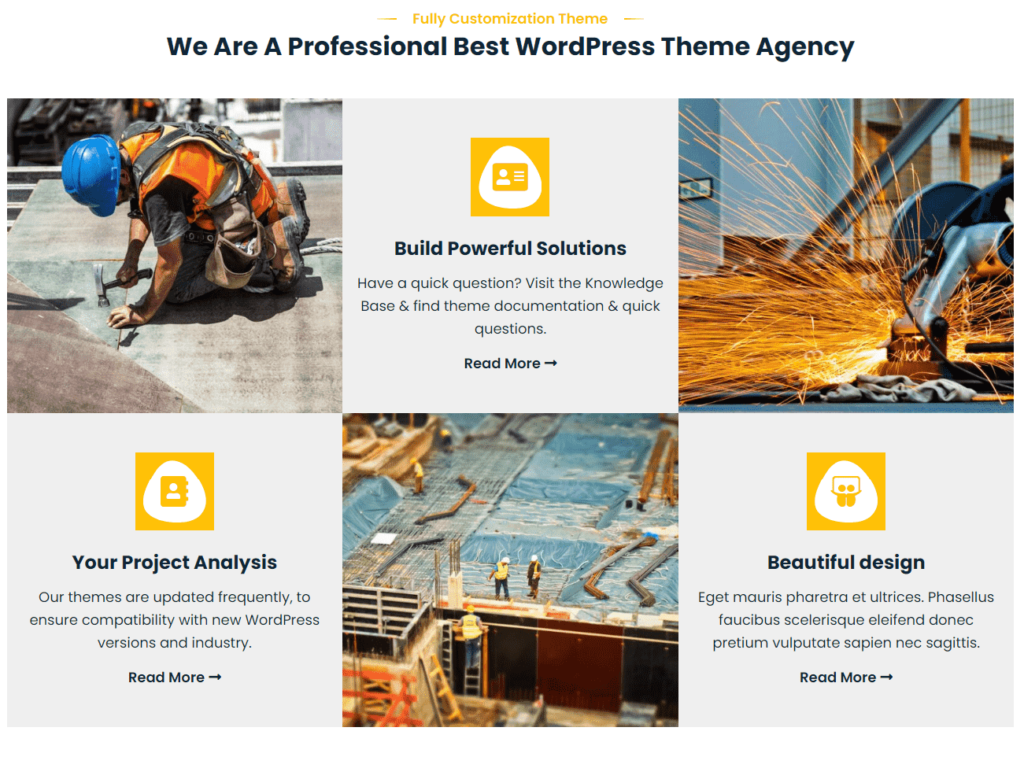
The theme allows you to display 6 features inside the service section of the home page. To configure the service section you’ll have to create a service page and later configure it to display it from the customizer.
How To Configure Default Service Section
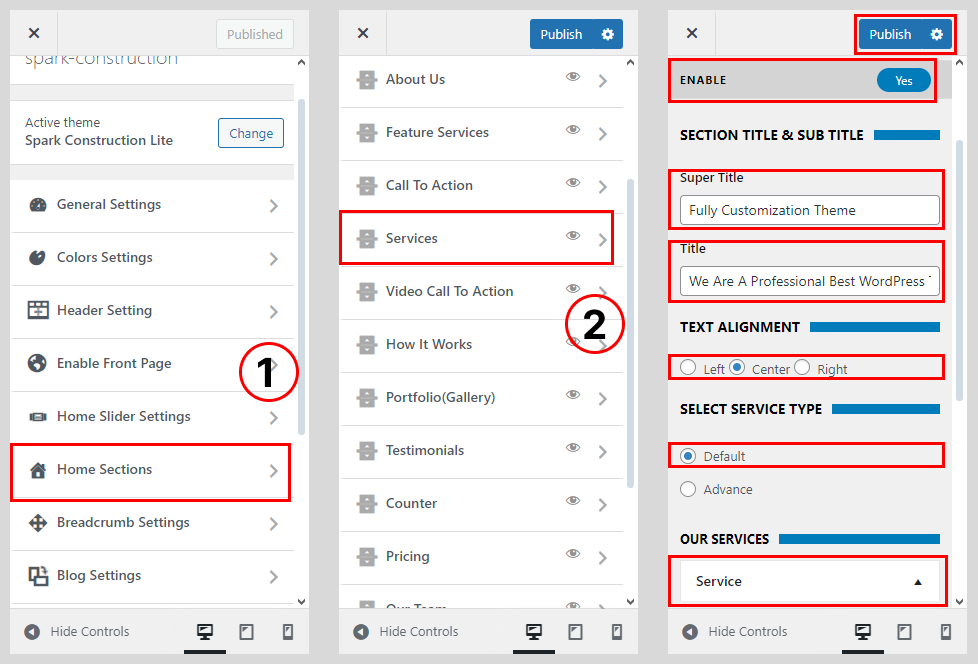
- Go to Dashboard > Appearance > Customize.
- Go to Home Sections > Service Section
- Set ‘Disable Section‘ to ‘No‘, if you wish to disable the portfolio section on your home page else, set the option to ‘Yes‘.
- Set the subtitle for the portfolio section under the ‘Sub Title‘ textarea field.
- Set the title for the portfolio section under ‘Title’ textfield.
- Select the Default Service Type
- Click on Service Item
- Select the Service Page
- Click on the ‘Save & Publish‘ button
How To Configure Service Page
Create other service pages in the same way.
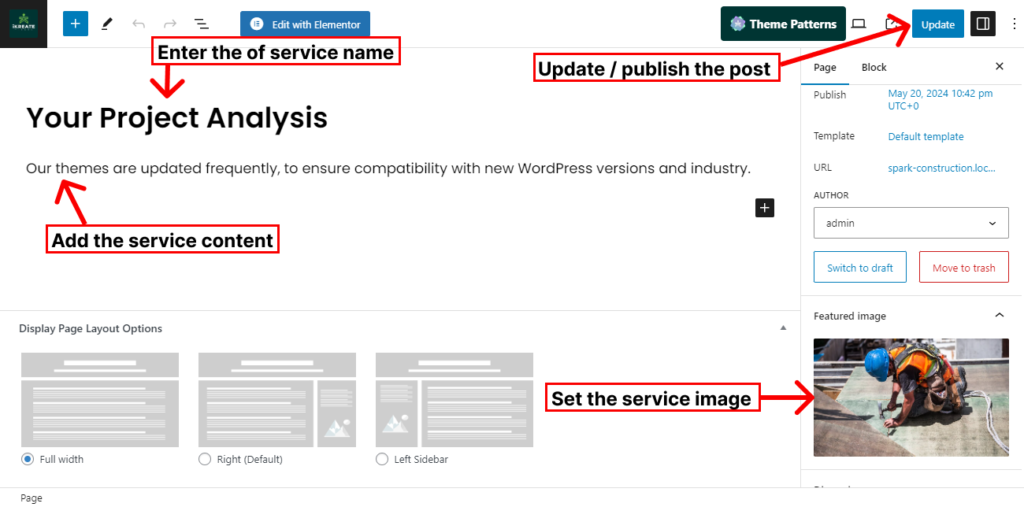
- Go to Dashboard > Pages > Add New.
- Enter the title for the service page.
- Enter the contents for the page in the content area.
- Click on Publish/Update button.
How To Configure Advance Service Section
- Go to Dashboard > Appearance > Customize.
- Go to Home Sections > Service Section.
- Set ‘Disable Section’ to ‘No’ if you wish to disable the Service section on your home page else set the option to ‘Yes’.
- Set the service section sub-title under the ‘Sup Title‘ textarea field.
- Set the service section title under the ‘Title‘ text field.
- Select the Advance Service Type
- Click on Service Item
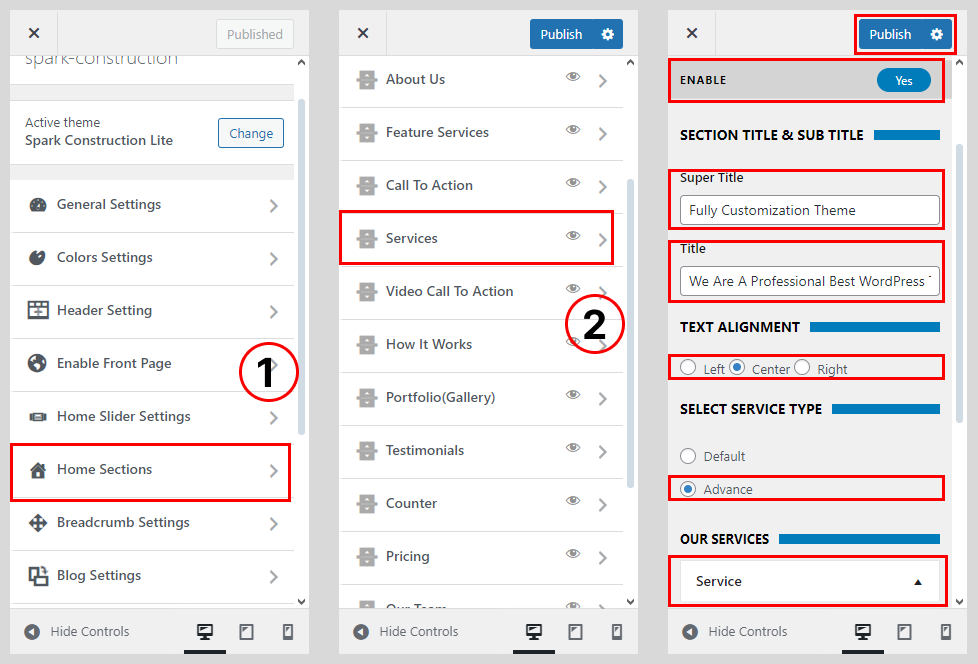
- Select the Service page that you’ve created for the Service Page 1 from ‘Select a Page’ drop-down page list.
- Set the icon for the Service Page 1 from the ‘FontAwesome Icon’ icon picker drop-down list.
- Set other service pages in the same way.
- Set the Image for service section on the right by clicking on the ‘Upload Image‘ button under the ‘Middle Image‘ image upload option.
- Write the Title and Short Description
- Select the Button Text and Button Url
- Click on the ‘Save & Publish‘ button.